
Ringostat
Connect Ringostat so calls flow into Happ with transcription, AI scoring and analytics
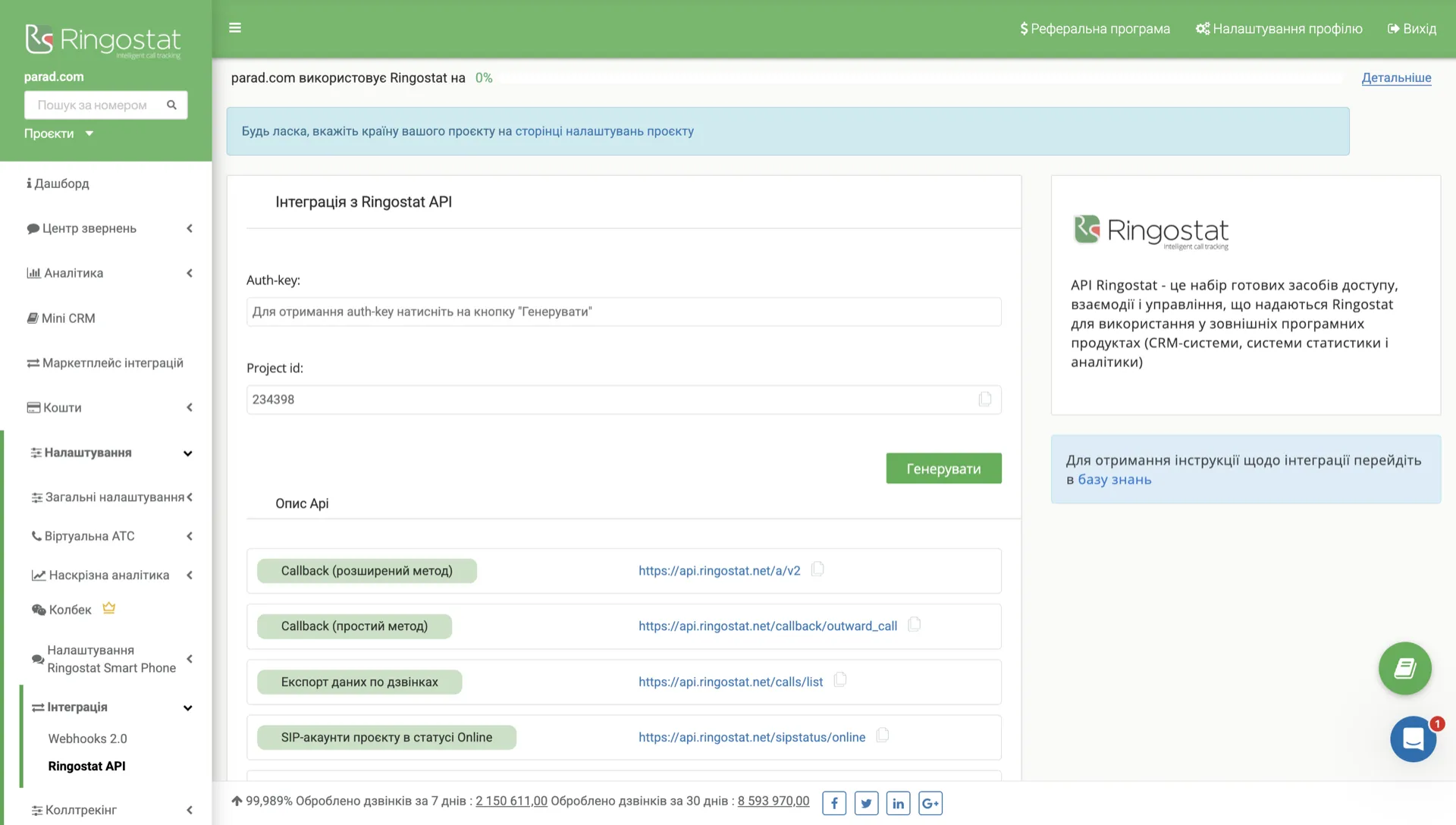
Ringostat generates its Auth-key on demand from the admin panel — one button, and the key is ready to paste into Happ.
Before you start
- Active Ringostat project with call tracking set up and admin rights on the project.
- Auth-key from the Ringostat admin (below).
- Happ account on a plan that includes voice analytics.
Get your Auth-key
- In the Ringostat admin open Налаштування (Settings) > Інтеграція (Integration).
- Pick Ringostat API.
- Click Генерувати — the key appears instantly in the Auth-key field. Copy it.
Connect
- In Happ open Integrations > Add Integration > Ringostat.
- Paste the key and connect.
| Field | Value |
|---|---|
| Auth Key | The Auth-key generated on the Ringostat API page |
Add the client's phone number separately under Phones — see Phone & SIP Setup.
How you'll know it's connected
The integration card shows a green Connected pill, and calls start reaching Happ straight away — with transcription, AI scoring and Voice AI available on them.
Disconnect and reconnect
To disconnect: open Integrations > Ringostat, click … next to the integration card and choose Remove.
After disconnecting:
- New Ringostat calls stop reaching Happ.
- All past calls, transcripts and AI scores stay in Happ.
- The Auth-key stays valid in Ringostat. Generating a new one on the Ringostat API page replaces the old key — which also breaks any other tool using it.
To reconnect: open Integrations > Ringostat > Connect, paste the Auth-key again, then attach the integration to the assistant.
Preserved after reconnecting: integration settings (call direction, who answers, scoring rubric), the assistant binding and its prompt, and all past transcripts, scores and dashboards.
Next
- Telephony Providers — all supported providers
- Phone & SIP Setup — connect the number
- Voice Assistant — overview and settings
Help me solve it
Happ answers right away and hands over to a manager when needed.