
KeyCRM
Connect KeyCRM so the assistant finds buyers by phone and creates pipeline cards or orders
KeyCRM connects with a single API key. Once it's linked, the assistant looks buyers up by phone number mid-conversation and drops new orders straight into your sales pipeline.
Before you start
- KeyCRM account on a paid plan — the API is exposed on all paid tiers.
- API key from KeyCRM settings (see below).
- HAPP workspace with at least one assistant configured to talk to customers.
- Pipeline and starting status — decide where new cards should land.
Get your API key
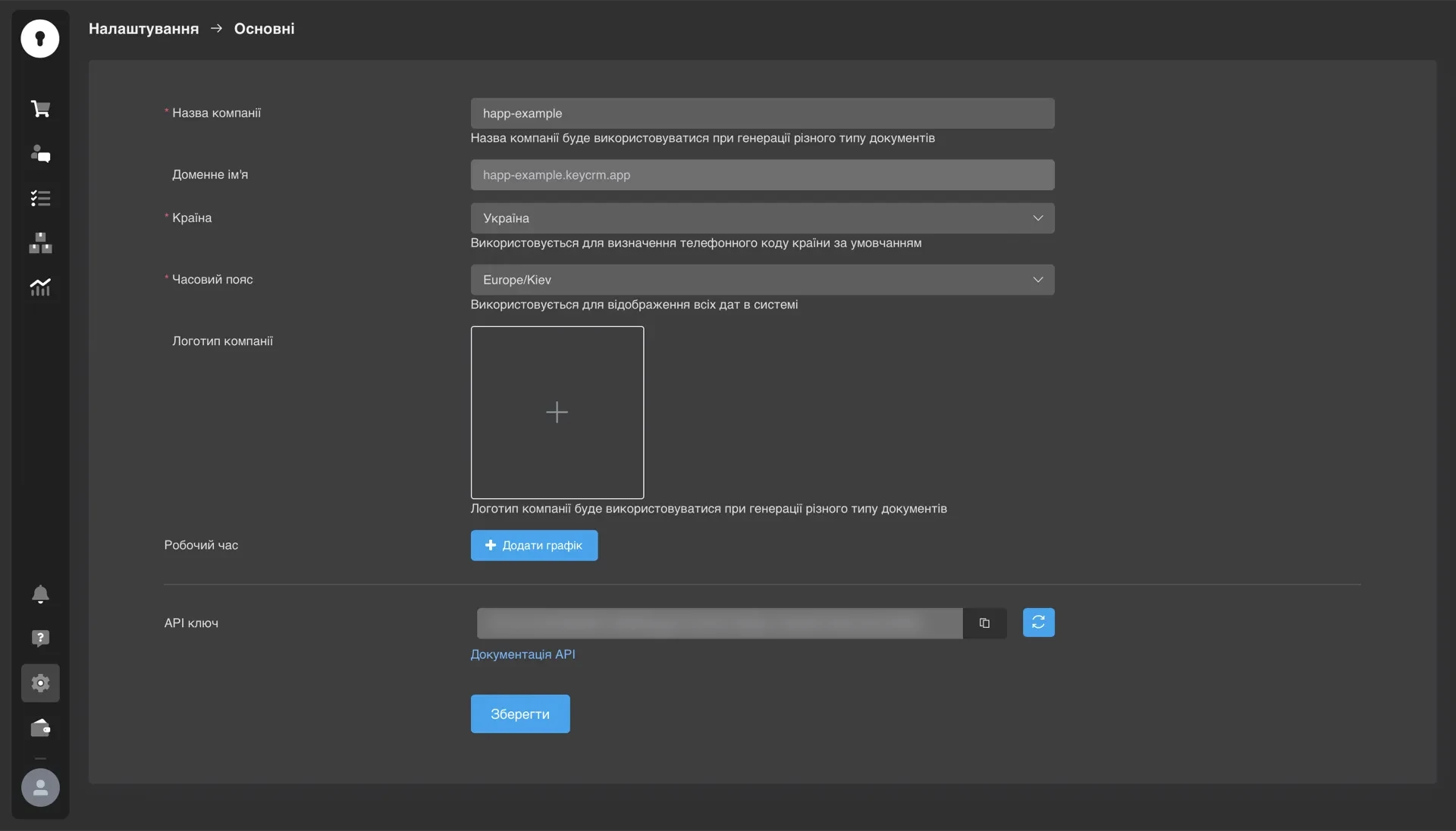
- From the KeyCRM dashboard, open Settings in the left sidebar.
- Go to General > API.
- Click Generate if there's no key yet, then copy the token.
Connect
- In HAPP open Integrations and find KeyCRM under Add a CRM.
- Click Connect — the modal asks for one field.
- Paste the API key and click Connect.
KeyCRM moves to My integrations as a card showing its Account Information — workspace name and the date and time of connection.
| Field | Value |
|---|---|
| API Key | The token from KeyCRM > Settings > General > API |
Settings
Open the card's gear icon to configure what the assistant is allowed to do.
- Search — the assistant looks up existing buyers by phone number and returns their data.
- Create — the assistant creates new records. Pick the creation mode (pipeline card or order), the sales pipeline, the card status the record is moved to, and the order source.
Troubleshooting
| Error | Cause | Fix |
|---|---|---|
INVALID_API_KEY | Key mistyped or copied with spaces | Re-copy the token from KeyCRM > Settings > General > API. Make sure you generated it before copying. |
TOKEN_REVOKED (401) | An admin rotated or revoked the key | Generate a fresh key in KeyCRM and reconnect in HAPP. |
RATE_LIMITED (429) | KeyCRM's API rate limit hit | Wait 1–2 minutes and retry. If it keeps happening, contact support — we can throttle requests on our side. |
| Orders aren't reaching KeyCRM | Sync misconfigured | Check three things, in order: pipeline and starting status are selected in Settings; the KeyCRM buyer fields used in mapping are active, not archived; the IP whitelist in KeyCRM > Settings > API is empty or includes HAPP egress IPs. |
Still stuck? Contact support with the error text and we'll point at the exact fix.
Disconnect and reconnect
To disconnect: open Integrations > KeyCRM, click Disconnect next to the connected workspace, and confirm.
After disconnecting:
- New chat orders stop being sent to KeyCRM.
- Existing orders in KeyCRM stay untouched.
- The assistant keeps working in chat — only the KeyCRM sync stops.
- The API key is not revoked in KeyCRM. Revoke it there separately if you need to.
To reconnect: open Integrations > KeyCRM, click Connect and paste the API key again.
Preserved after reconnecting: pipeline and status selection, field mapping, the assistant-to-workspace binding, and order analytics for the integration.
Next
- CRM — all CRM integrations
- Tools — call the CRM during conversations
- Integrations — the full catalog
Help me solve it
Happ answers right away and hands over to a manager when needed.