
Odoo
Connect an Odoo server so the assistant finds contacts by phone and creates orders
Odoo connects with your server details and a user login — Happ authenticates against your Odoo instance directly, so it works with Odoo Online and self-hosted alike. Once linked, the assistant finds contacts by phone number and creates orders from chat.
Before you start
- Odoo instance you can reach over the internet — Odoo Online (
mycompany.odoo.com) or your own server. - Server URL, database name, and a user login with permission to read contacts and create orders.
- Password or API key for that user (see below — an API key is the safer option).
- HAPP workspace with at least one assistant configured to talk to customers.
Get an API key
You can connect with the user's regular password, but an API key is safer — it's scoped to one integration and you can revoke it without changing the account password.
- In your Odoo dashboard, click the avatar in the top-right and pick My Preferences.
- Switch to the Security tab, press Add API Key, then enter your current password to confirm it's you.
- Give the key a name (for example
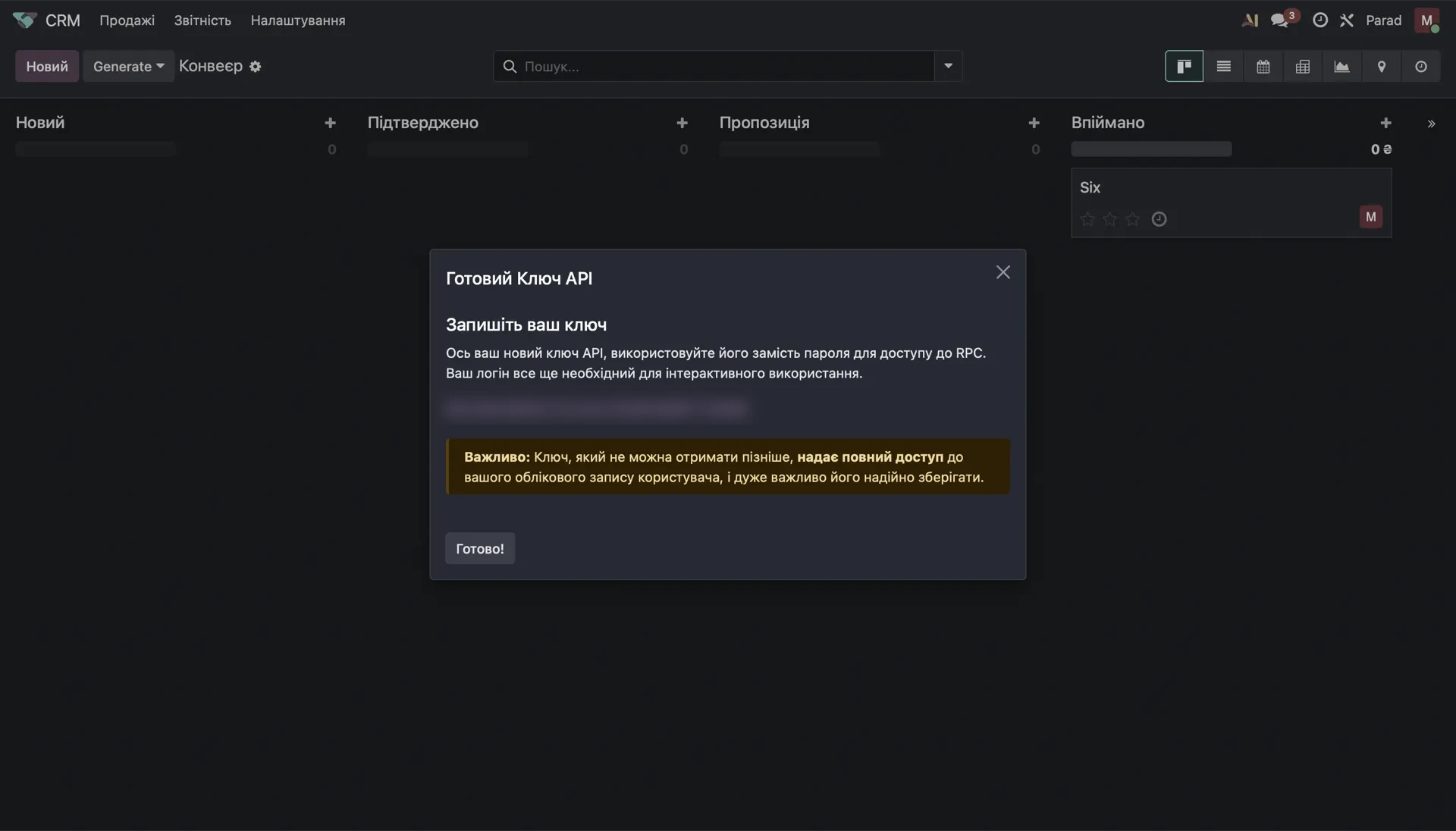
Happ) and change the duration from "1 Day" to "1 Year" — otherwise the key expires in 24 hours. Press Create key and copy it.
Odoo shows the API key once. Copy it before closing the dialog — if you lose it, you have to generate a new one.
Connect
- In HAPP open Integrations and find Odoo under Add a CRM.
- Click Connect — the modal asks for four fields.
- Enter them and click Connect.
| Field | Value |
|---|---|
| Server URL | Your instance address, e.g. https://mycompany.odoo.com |
| Database | The database name |
| Login | The user's email |
| Password | The user's Odoo password, or the API key generated above |
Odoo moves to My integrations as a card showing its Account Information — instance name and the date and time of connection.
Settings
Open the card's gear icon to configure what the assistant is allowed to do.
- Search — the assistant looks up contacts by phone number in the Odoo database.
- Create — the assistant creates orders linked to the contact, with the product name in the notes.
Troubleshooting
| Problem | Cause | Fix |
|---|---|---|
| Authentication fails | Wrong login, password, or database | Odoo needs all four values to match. Confirm the database name — an instance can host several, and the name is not always the same as the subdomain. |
| Key stopped working after a day | The API key was created with the default "1 Day" duration | Generate a new key and set the duration to 1 Year. |
| 401 on a key that used to work | An admin revoked it, or the user's password changed | Generate a fresh API key in My Preferences > Security and reconnect in HAPP. |
| Server unreachable | Self-hosted instance not exposed, or blocked by firewall | The URL must be reachable from the internet over HTTPS. Allow HAPP egress IPs if you filter by IP. |
| Orders aren't being created | Sync misconfigured or missing permissions | Check that Create is enabled in Settings, and that the Odoo user has rights to create orders. |
Still stuck? Contact support with the error text and we'll point at the exact fix.
Disconnect and reconnect
To disconnect: open Integrations > Odoo, click Disconnect next to the connected instance, and confirm.
After disconnecting:
- New chat orders stop being sent to Odoo.
- Existing records in Odoo stay untouched.
- The assistant keeps working in chat — only the Odoo sync stops.
- The API key is not revoked in Odoo. Revoke it there separately if you need to.
To reconnect: open Integrations > Odoo, click Connect and enter the four fields again.
Preserved after reconnecting: search and create settings, field mapping, the assistant-to-instance binding, and analytics for the integration.
Next
- CRM — all CRM integrations
- Tools — call the CRM during conversations
- Integrations — the full catalog
Help me solve it
Happ answers right away and hands over to a manager when needed.