
SalesDrive
Connect SalesDrive so the assistant finds orders by phone, creates new ones, and can read your product catalog
SalesDrive connects with an API key plus your store subdomain. Once it's linked, the assistant finds orders by phone number, creates new ones from chat, and — if you enable it — can suggest products from your catalog.
Before you start
- SalesDrive account on a plan with API access enabled in Settings > API. Free tiers don't expose the API.
- General API key from SalesDrive — not the Form-API key, those are different.
- HAPP workspace with at least one assistant configured to talk to customers.
- Funnel and starting status — decide where new orders should land.
Get your API key
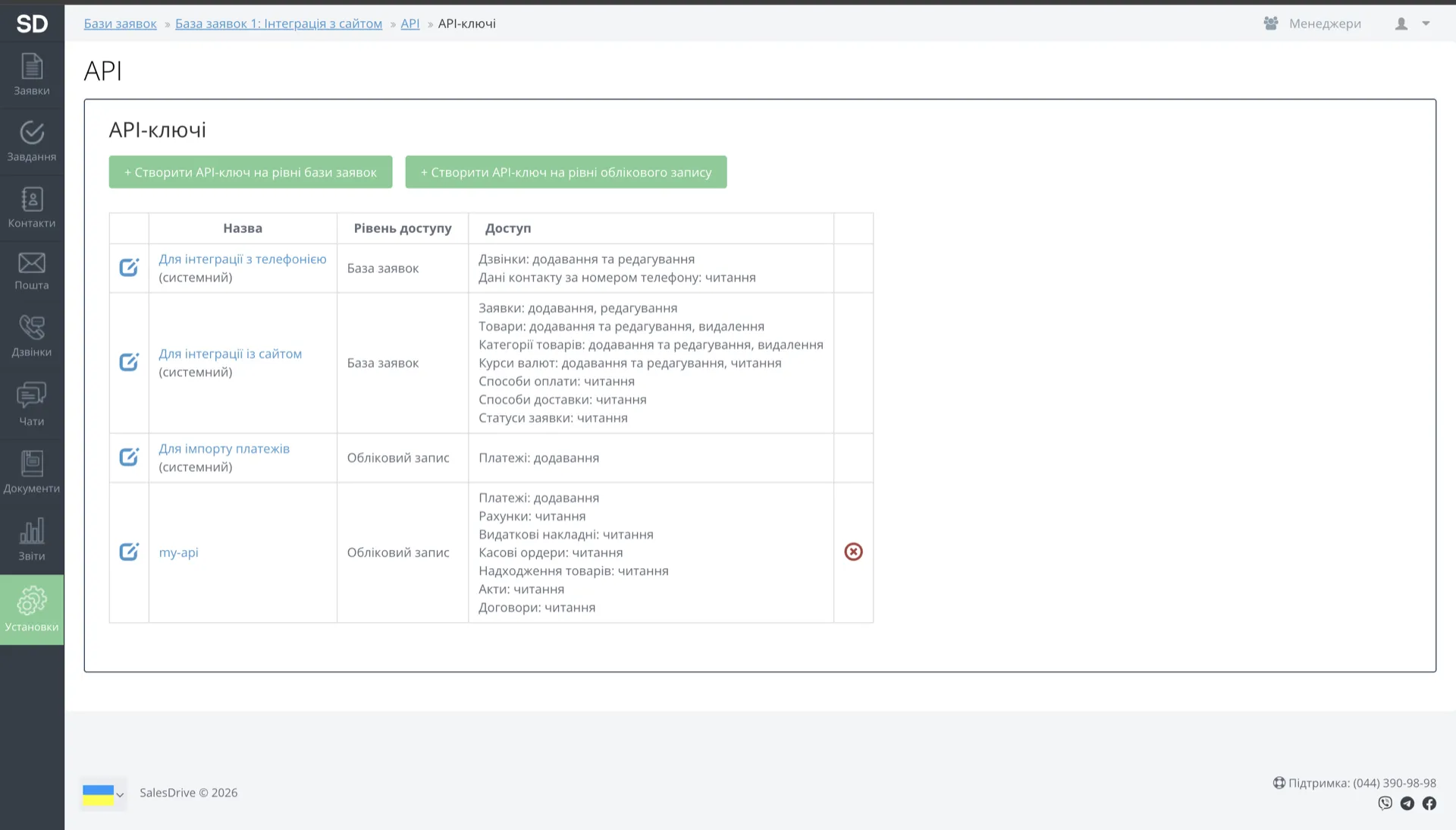
- In the SalesDrive admin, go to Settings > General settings & integrations.
- Navigate to Own sites & marketplaces and pick API.
- Click API keys, then in the table choose the row "For website integration (system)" and copy that key.
Connect
- In HAPP open Integrations and find SalesDrive under Add a CRM.
- Click Connect — the modal asks for two fields.
- Enter them and click Connect.
| Field | Value |
|---|---|
| API Key | The general API key from SalesDrive > Settings > API |
| Domain | The subdomain only — for happstore.salesdrive.me enter happstore |
SalesDrive moves to My integrations as a card showing its Account Information — store domain and the date and time of connection.
Settings
Open the card's gear icon to configure what the assistant is allowed to do.
- Search — the assistant looks up orders by phone number and returns the contact data.
- Create — the assistant creates new orders with the customer's name, phone and comment.
- Catalog — the assistant gets access to your product catalog and can suggest products. This needs a YML Catalog public key: in SalesDrive go to Settings > Integrations > YML Export and copy the public key.
Troubleshooting
| Error | Cause | Fix |
|---|---|---|
INVALID_API_KEY | Wrong key, or copied with spaces | Re-copy the key. Use the general API key from SalesDrive > Settings > API — not the Form-API key. |
WRONG_DOMAIN | Full domain entered instead of the subdomain | Enter the subdomain only. For happstore.salesdrive.me the value is happstore. |
TOKEN_REVOKED (401) | An admin rotated or revoked the key | Generate a fresh key in SalesDrive > Settings > API and reconnect in HAPP. |
RATE_LIMITED (429) | SalesDrive's API rate limit hit | Wait 1–2 minutes and retry. If it keeps happening, contact support — we can throttle requests on our side. |
| Orders aren't reaching SalesDrive | Sync misconfigured | Check three things, in order: funnel and starting status are selected in Settings; the SalesDrive client fields used in mapping are active, not archived; the IP whitelist in SalesDrive > Settings > API is empty or includes HAPP egress IPs. |
Still stuck? Contact support with the error text and we'll point at the exact fix.
Disconnect and reconnect
To disconnect: open Integrations > SalesDrive, click Disconnect next to the connected store, and confirm.
After disconnecting:
- New chat orders stop being sent to SalesDrive.
- Existing orders in SalesDrive stay untouched.
- The assistant keeps working in chat — only the SalesDrive sync stops.
- The API key is not revoked in SalesDrive. Revoke it there separately if you need to.
To reconnect: open Integrations > SalesDrive, click Connect and enter your domain and API key again.
Preserved after reconnecting: funnel and starting-status selection, field mapping, the assistant-to-store binding, and order analytics for the integration.
Next
- CRM — all CRM integrations
- Tools — call the CRM during conversations
- Integrations — the full catalog
Help me solve it
Happ answers right away and hands over to a manager when needed.